
This guide walks you through building a Hospital Management System using C# from the ground up, a desktop application for managing patients, doctors, departments, and appointments, complete with source code. Instead of only downloading it, you will understand how each part works: the database design, how C# connects to the database, the relationships between the records, and how the Windows Forms interface ties it together. That understanding is what turns a downloaded project into something you can explain in a viva, extend for an assignment, or showcase in your portfolio.
Jump to download & setup
- What a hospital management system does
- The technology: C#, Windows Forms, and SQL Server
- The database schema (departments, doctors, patients, appointments)
- How C# connects to the database (ADO.NET)
- How patient, doctor, and appointment management work
- The login and the main dashboard
- Setup: running it in Visual Studio
- How to extend it for your own project
1. What a hospital management system does
A hospital management system is software a hospital uses to run its core operations: registering patients, maintaining doctor and department records, scheduling appointments, and tracking visits. It replaces scattered paper records with one reliable, searchable application. Building one in C# is one of the most respected student projects because it is larger and more relational than a typical desktop project, exercising database design, multiple table relationships, connecting code to a database, CRUD operations, and building a user interface, all in a realistic professional context.
The version in this guide is a C# desktop application that includes patient management, doctor management organized by department, appointment scheduling, a secure login, and a main dashboard. That is enough to be a complete, demonstrable project while staying clear enough to fully understand.
2. The technology: C#, Windows Forms, and SQL Server
Most C# hospital projects are built as a Windows Forms application in Visual Studio, with the data stored in a SQL Server (or SQL Server Express) database. Windows Forms gives you the visual screens, the windows, buttons, text boxes, and grids you interact with. C# is the language behind those screens that runs when you click a button. SQL Server holds the actual data in tables. The bridge between the C# code and the database is a technology called ADO.NET, which lets your code send SQL queries and read the results.
3. The database schema
The schema is the backbone of the project, and a hospital system has a richer one than most, which is part of why it impresses. The C# hospital system uses these core tables in SQL Server.
| Table | What it stores | Key columns |
|---|---|---|
Departments | Hospital departments | DepartmentId, Name |
Doctors | Each doctor, in a department | DoctorId, Name, DepartmentId, Specialization, Phone |
Patients | Each registered patient | PatientId, Name, Age, Gender, Phone, Address |
Appointments | A scheduled visit | AppointmentId, PatientId, DoctorId, AppointmentDate, Status |
The relationships are the key idea, and there are several. Each doctor belongs to a department, a patient can have many appointments, a doctor can have many appointments, and the Appointments table links a patient to a doctor for a specific date. The foreign keys, DepartmentId on doctors and PatientId and DoctorId on appointments, tie everything together. Understanding this diagram is understanding most of the project.
4. How C# connects to the database (ADO.NET)
This is the concept at the centre of any C# database project, and the one examiners most often ask about. Your C# code talks to SQL Server through a connection string (which says where the database is) and commands that carry SQL. A typical insert from a form looks like this:
// add a patient using ADO.NET (simplified)
using (SqlConnection con = new SqlConnection(connectionString))
{
  con.Open();
  string sql = "INSERT INTO Patients (Name, Age, Gender, Phone, Address) " +
               "VALUES (@name, @age, @gender, @phone, @address)";
  SqlCommand cmd = new SqlCommand(sql, con);
  cmd.Parameters.AddWithValue("@name", txtName.Text);
  cmd.Parameters.AddWithValue("@age", txtAge.Text);
  cmd.Parameters.AddWithValue("@gender", cmbGender.Text);
  cmd.Parameters.AddWithValue("@phone", txtPhone.Text);
  cmd.Parameters.AddWithValue("@address", txtAddress.Text);
  cmd.ExecuteNonQuery();
}
Two important habits show up here. The using block guarantees the connection is closed even if something goes wrong, which prevents leaked connections. And the parameters (@name, @age, and so on) instead of pasting text box values straight into the SQL string are how you prevent SQL injection, the same security principle that applies in every language. Being able to explain both is what separates a project you understand from one you merely ran.
5. How patient, doctor, and appointment management work
Patient and doctor management are CRUD: add, view, edit, delete, each a button on a form running a SQL command through ADO.NET like the one above. Viewing records loads them into a grid (a DataGridView). Each doctor is assigned to a department by selecting from the departments list. Scheduling an appointment is where the tables come together: the form lets the user pick a patient, a doctor, and a date, then inserts a row into the Appointments table linking the two by their IDs.
To show appointments readably, with patient, doctor, and department names instead of ID numbers, the query uses several JOINs:
// appointments with patient, doctor, and department names
SELECT a.AppointmentDate, a.Status,
       p.Name AS Patient,
       d.Name AS Doctor,
       dep.Name AS Department
FROM Appointments a
JOIN Patients p ON a.PatientId = p.PatientId
JOIN Doctors d ON a.DoctorId = d.DoctorId
JOIN Departments dep ON d.DepartmentId = dep.DepartmentId
ORDER BY a.AppointmentDate
This single query, with three joins, turns four normalized tables back into one human-readable schedule. Understanding why each join is needed, one to reach the patient, one to reach the doctor, and one more to reach that doctor’s department, is understanding the heart of relational databases, and being able to walk an examiner through it demonstrates genuine command of the project.
6. The login and the main dashboard
The application opens with a login form that checks a username and password against a staff record before letting the user in. On success it opens the main dashboard form, with menu buttons leading to the patient, doctor, department, and appointment screens, plus summary figures like total patients, total doctors, and today’s appointments, each a small query against the tables you now understand. Because you know the schema, you can add any new dashboard figure yourself just by writing its query.
7. Setup: running it in Visual Studio
To run this C# project you need Visual Studio and SQL Server (the free Express edition works). The steps are:
- Install Visual Studio with the .NET desktop development workload, and SQL Server Express.
- Open the project’s
.slnsolution file in Visual Studio. - Restore the database by running the included
.sqlscript, or attach the included database file, in SQL Server. - Update the connection string in the project to match your SQL Server instance name.
- Press F5 to build and run, then log in with the default credentials in the guide.
The complete hospital management system in C# with the Visual Studio project and database is ready to download and run by following the steps above.
Download source code
Replace this link with your actual download URL.
8. How to extend it for your own project
Assignments and portfolios reward what you add, not what you copied. Because you now understand the schema and how C# talks to the database, here are natural extensions you can build and explain:
- Patient medical history: a records table linked to patients and appointments for diagnoses and notes.
- Billing and prescriptions: generate bills and prescriptions tied to each appointment.
- Admissions and beds: track inpatient admissions and bed availability by ward.
- Doctor availability: store each doctor’s slots and prevent double-booking.
- Reports and printing: a printable daily appointment list or department report.
Each is a small, well-scoped addition that demonstrates real understanding, exactly what turns a standard download into a project you can defend and be proud of.
Frequently asked questions
What is a hospital management system in C#?
It is a desktop application that manages patients, doctors, departments, and appointments for a hospital, built with C# and Windows Forms and backed by a SQL Server database. It is a respected student project because it is larger and more relational than typical projects, covering database design, ADO.NET, CRUD, and a user interface.
What database and tools does it use?
It is typically built in Visual Studio as a Windows Forms application using C#, with data stored in SQL Server (the free Express edition is fine). The C# code connects to the database using ADO.NET.
How does C# connect to the database?
Through ADO.NET. The code uses a connection string to reach SQL Server and SqlCommand objects to send SQL queries with parameters, then reads the results. Using parameters rather than pasting values into the SQL prevents SQL injection.
Can I use this as my college or university project?
Yes. It is one of the most respected academic projects, and because this guide explains the schema, the relationships, the ADO.NET connection, and the JOIN queries, you can confidently answer questions in a viva. Adding one of the suggested extensions makes it stronger still.
Is the source code free to download?
Yes, the full hospital management system source code is available to download for free using the link in the download section above.
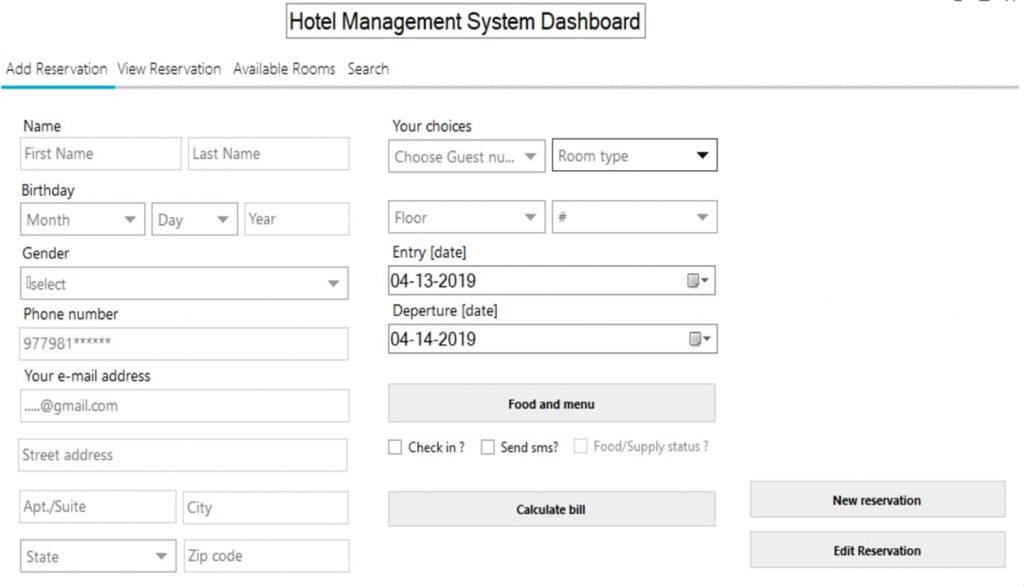
Hospital Management system is developed using C# and MYSQL. MYSQL is used to perform all the database tasks whereas C# is used to perform all functions of the system. Hospital Management System is safe, secure and is protected by login system. The system can be categorized in 3 types: Admin – Doctor and Staff. Each of them has their own role and their own usage on the system.
Features of Admin in Hospital Management system:
- Admin can add register new staffs
- Admin can register a new doctor on the system
- Admin can update the details or delete the registered staff within the system
- Admin can update the details or delete the doctor’s records from the system
- Admin can see the details of patients which means they can also see the patient name, patient age, patient phone number, patient address, patient disease name, patient-doctor name, patient date of admission, patient date of exit, medicine details, bed details, and total cost.
- Admin can add new Medicine with their details.
- Admin can add test details that includes test name, test price and test performed for the specific disease.
Features of Doctor in Hospital Management system
- Doctor can see the request of the treatment from patients in the system
- Doctor can check patient and make a form with their details like patient name, prescribed medicine etc.
- Doctor can check patients records on the system
- Doctor can also update their personal details within the program.
Features of Staff in Hospital Management system
- Staffs can admit or register a new patient using the system
- Staff can easily discharge any patient from the system
- Staff can view the patient details they have added in the system.
- Staff can view doctors schedule and make appointments.
- Staff can manage medicine and their details.
- Staff can see the blood bank and the available blood on the bank
- Staff can update their details on the system.
Installation steps and other important notes are given on a file within the project folder. Be sure to read the file before running the application.
FIND MORE on this site.
DOWNLOAD Hospital Management System in C# with source code FOR FREE

thanks